How to Use the Windows 10 AppLocker Features
Unlock Your Windows 10 Security: Mastering App Locker
Hey there, fellow Windows enthusiasts! Ever feel like your PC is a bit of a Wild West, with programs running amok and you're not entirely sure what's going on? We've all been there. Maybe you've downloaded something a little questionable, or a well-meaning friend installed some "essential" software that's now bombarding you with pop-ups. Or perhaps you're a small business owner trying to keep your employees from installing the latest game on company computers during work hours (we won’t tell!). The struggle is real!
Think of it like this: Your computer is your digital house. You want to control who gets in and what they do once they're inside, right? You wouldn’t leave the door wide open for just anyone to waltz in and start rearranging the furniture (or worse!). That's where App Locker comes in. It's like having a super-smart, incredibly vigilant security guard for your Windows 10 system, but instead of a grumpy guy in a uniform, it's a built-in feature that lets you control which applications and files can run. Seriously cool, right?
Now, you might be thinking, "Okay, sounds great, but is this going to be some super complicated tech jargon I need a Ph D to understand?" Fear not, my friends! While App Locker can seem a bit intimidating at first glance, it's actually quite manageable once you break it down. We're going to walk through it together, step by step, in plain English. No computer science degree required!
We'll cover everything from the basics of what App Locker is and why you should care, to the nitty-gritty details of setting up rules and managing exceptions. We'll even throw in some real-world examples to help you understand how it can be applied in different scenarios. And who knows, maybe we’ll even inject a little humor along the way (because let’s be honest, security can be a bit dry sometimes).
So, are you ready to take control of your Windows 10 security and finally tame that digital Wild West? Let's dive in and unlock the power of App Locker! Are you curious about how to transform your Windows 10 PC into a fortress of digital security? Keep reading, because we're about to unveil the secrets!
How to Use the Windows 10 App Locker Features
App Locker, a powerful feature built into Windows 10, allows you to control which applications and files can run on your system. This can be incredibly useful for both home users and businesses looking to improve their security posture. Think of it as a bouncer for your computer, only letting in the "approved" guests (applications) and keeping out the unwanted ones. Let's explore how you can effectively use App Locker to protect your Windows 10 system.
Understanding App Locker's Core Concepts
Before we jump into the configuration, let's get a handle on some key concepts. App Locker works by creating rules that define which applications are allowed to run. These rules can be based on various criteria, giving you a fine-grained level of control.
• Rule Types: App Locker has three main types of rules: executable rules, Windows Installer rules, and script rules. Executable rules control which .exe and .com files can run. Windows Installer rules manage the installation of .msi and .msp files. Script rules govern the execution of scripts such as .ps1, .bat, .cmd, and .vbs files. Think of each type as applying to different doors on your digital house.
• Rule Conditions: You can define rules based on several conditions, including publisher, path, and file hash. Publisher rules are based on the digital signature of the application. Path rules specify a file or folder location. File hash rules use a cryptographic hash of the file to identify it uniquely. We'll get deeper into these in the configuration section. Consider each condition as a specific identifying characteristic, ensuring only the correct applications are granted access.
• Default Rules: App Locker includes a set of default rules that are designed to allow Windows to function correctly. It’s generally a good idea to keep these rules enabled to avoid unintended consequences. These default rules are like the basic infrastructure that keeps your house running smoothly.
• Rule Collections: App Locker organizes rules into collections based on the type of rule (executable, Windows Installer, and script). Each collection can be configured independently. Managing them separately allows for granular control and easier organization.
Enabling the Application Identity Service
App Locker relies on the Application Identity service to function. Before you start creating rules, you need to make sure this service is running.
• Accessing Services: Press the Windows key, type "services.msc," and press Enter. This will open the Services window. It’s the control panel for all the behind-the-scenes processes on your computer.
• Locating the Service: Scroll down and find the "Application Identity" service. It should be fairly easy to spot.
• Starting the Service: Right-click on the service and select Properties.In the Properties window, set the "Startup type" to Automatic.This ensures that the service starts automatically whenever your computer boots up. Then, click "Apply" and OK.Finally, right-click on the service again and select "Start" to start it immediately. Think of this as turning on the power switch for your security system!
Configuring App Locker Rules
Now, let's get to the heart of the matter: creating App Locker rules. We'll use the Local Security Policy editor to configure these rules. Remember, for domain-joined computers, these settings are typically managed through Group Policy.
• Accessing Local Security Policy: Press the Windows key, type "secpol.msc," and press Enter. This will open the Local Security Policy editor. This is your mission control for configuring security settings on your local machine.
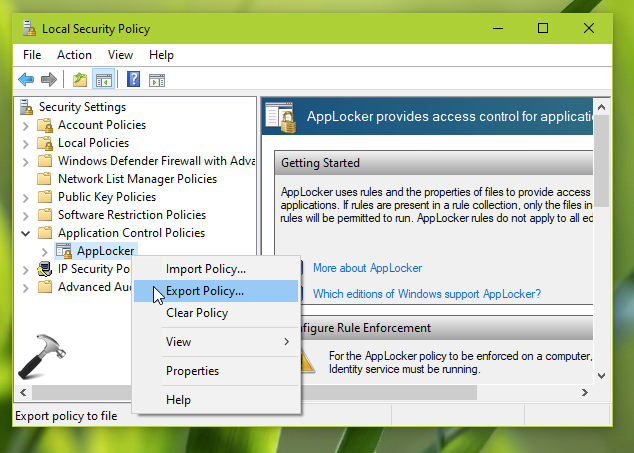
• Navigating to App Locker: In the left pane, navigate to "Security Settings" -> "Application Control Policies" -> App Locker.You'll see the three rule collections we mentioned earlier: Executable Rules, Windows Installer Rules, and Script Rules.
• Creating a New Rule: Right-click on the rule collection you want to configure (e.g., "Executable Rules") and select "Create New Rule." This will launch the Create Rule wizard. Think of this as starting the process of building a new security parameter.
• Choosing an Action: The first step is to choose whether you want to "Allow" or "Deny" the application. "Allow" rules permit the application to run, while "Deny" rules block it. Choose wisely, young Padawan!
• Selecting a Condition: Next, you need to choose the condition on which the rule will be based: Publisher, Path, or File Hash. Let's look at each of these in more detail:
• Publisher: This is often the most convenient option, especially for applications that are digitally signed. You can select a reference file (e.g., the main executable of the application), and App Locker will extract the publisher information from the digital signature. You can then specify the scope of the rule, such as allowing all versions of the application from that publisher, or only specific versions. Imagine this as verifying the credentials of the application.
• Path: This allows you to create rules based on the location of the application. For example, you could allow all applications in the "Program Files" folder to run, or block all applications in the "Downloads" folder. Be careful with path rules, as they can be easily circumvented if someone moves the application to a different location. Think of it as setting up boundaries, specific areas where allowed activities can occur.
• File Hash: This is the most specific and secure option, as it uses a unique cryptographic hash of the file. However, it's also the most tedious, as you need to calculate the hash for each file you want to control. Furthermore, file hash rules are invalidated if the application is updated, as the update will change the file hash. Consider this the most secure verification method, providing unparalleled accuracy and reliability.
• Setting Exceptions: After you've defined your rule, you can add exceptions. Exceptions are rules that override the main rule. For example, you might have a rule that blocks all scripts from running, but you could create an exception to allow a specific script to run. This allows for flexibility while still maintaining a strong security posture.
• Naming and Creating the Rule: Finally, give your rule a descriptive name and click Create.Your rule is now active! Name your rule clearly so you can easily identify its purpose later.
Real-World Examples
Let's look at some practical examples of how you can use App Locker rules.
• Blocking Unapproved Software: Let's say you want to prevent users from installing and running unauthorized games or productivity software. You can create Deny rules based on the publisher or file hash of these applications. This will ensure that only approved software can be installed and run on your systems. This is like setting up a strict dress code at your digital party – only approved guests allowed!
• Allowing Specific Scripts: Suppose you have a set of Power Shell scripts that you use for system administration. You can create Allow rules based on the file hash of these scripts to ensure that only these authorized scripts can run. This can prevent malicious scripts from being executed on your systems.
• Controlling Windows Installer Packages: You can use Windows Installer rules to control which .msi files can be installed. For example, you could create a rule to only allow the installation of software from trusted publishers. This can prevent users from installing potentially malicious software.
Testing and Troubleshooting
After you've configured your App Locker rules, it's important to test them to make sure they're working as expected. Here are some tips for testing and troubleshooting App Locker rules.
• Use the Audit Only Mode: Before you start enforcing your rules, you can put App Locker into "Audit Only" mode. In this mode, App Locker will log events when a rule would have been enforced, but it won't actually block the application. This allows you to see how your rules will affect your users without actually disrupting their workflow. This is like running a simulation before the real deal, helping you identify any potential issues.
• Check the Event Logs: App Locker logs events to the Windows Event Log. You can use the Event Viewer to view these events and troubleshoot any issues. The Event Viewer is your detective tool for investigating any security-related mysteries.
• Use the App Locker Power Shell Cmdlets: Windows Power Shell includes a set of cmdlets for managing App Locker rules. You can use these cmdlets to create, modify, and test your rules. This gives you a powerful and flexible way to manage App Locker.
• Test with Different User Accounts: Make sure to test your rules with different user accounts, including both administrator and standard user accounts. This will help you identify any potential issues with your rules.
Best Practices for App Locker
Here are some best practices to keep in mind when using App Locker.
• Start with a Plan: Before you start configuring App Locker rules, take the time to plan out what you want to achieve. Identify the applications you want to allow and deny, and create a clear set of rules.
• Use a Layered Approach: App Locker is just one part of a comprehensive security strategy. Make sure to use it in conjunction with other security measures, such as antivirus software and firewalls.
• Keep Your Rules Up to Date: As applications are updated, their publisher information and file hashes may change. Make sure to keep your rules up to date to ensure that they continue to function correctly.
• Monitor Your System: Regularly monitor your system for App Locker events. This will help you identify any potential issues and ensure that your rules are working as expected.
• Educate Your Users: Make sure your users understand how App Locker works and why it's important. This will help them avoid accidentally violating your rules.
By following these tips, you can effectively use App Locker to protect your Windows 10 system from unauthorized applications and files. Stay safe out there, friends!
App Locker Gotchas to Watch Out For
While App Locker is a robust security feature, there are some common pitfalls to avoid. Here are a few "gotchas" to keep in mind:
• Overly Restrictive Rules: Be cautious about creating rules that are too restrictive. You don't want to accidentally block legitimate applications that your users need to do their jobs. Always test your rules thoroughly before enforcing them. This is like accidentally locking yourself out of your own house!
• Ignoring Default Rules: Don't disable or modify the default App Locker rules unless you have a very good reason to. These rules are designed to allow Windows to function correctly, and disabling them can lead to unexpected problems.
• Forgetting to Update Rules: As we mentioned earlier, it's important to keep your rules up to date. When applications are updated, their publisher information and file hashes may change, which can invalidate your rules.
• Conflicting Rules: Be aware that App Locker rules can conflict with each other. If you have multiple rules that apply to the same application, the most restrictive rule will take precedence.
• Bypassing App Locker: While App Locker is a powerful security feature, it's not foolproof. There are ways to bypass App Locker, such as by renaming an executable or by exploiting vulnerabilities in the operating system. This is why it's important to use App Locker in conjunction with other security measures.
Leveraging Power Shell for App Locker Management
For advanced users, Power Shell provides a powerful way to manage App Locker rules. Here's a brief overview of some useful Power Shell cmdlets:
• Get-App Locker Policy: This cmdlet retrieves the current App Locker policy. You can use it to view the rules that are currently configured.
• Set-App Locker Policy: This cmdlet sets the App Locker policy. You can use it to import a policy from an XML file.
• New-App Locker Policy: This cmdlet creates a new App Locker policy. You can use it to create a policy from scratch.
• Add-App Locker Rule: This cmdlet adds a new rule to the App Locker policy.
• Remove-App Locker Rule: This cmdlet removes a rule from the App Locker policy.
These cmdlets provide a flexible and powerful way to automate the management of App Locker rules. If you're comfortable with Power Shell, you can use it to streamline your App Locker configuration and maintenance.
The Future of Application Control
As technology evolves, so too does the landscape of application control. In the future, we can expect to see even more sophisticated techniques for managing and securing applications. Here are some trends to watch:
• Cloud-Based Application Control: As more and more applications move to the cloud, we can expect to see the emergence of cloud-based application control solutions. These solutions will allow you to manage and secure applications regardless of where they are hosted.
• Artificial Intelligence (AI) and Machine Learning (ML): AI and ML are already being used in security solutions, and we can expect to see them play an even bigger role in application control. AI and ML can be used to automatically identify and block malicious applications.
• Zero Trust Security: The concept of zero trust security is gaining traction. Zero trust security assumes that no user or device is inherently trustworthy, and requires all users and devices to be authenticated and authorized before they are granted access to resources. App Locker can be an important component of a zero trust security strategy.
• Containerization and Microservices: The rise of containerization and microservices is changing the way applications are developed and deployed. This is creating new challenges for application control, as traditional techniques may not be effective in these environments.
By staying informed about these trends, you can ensure that your application control strategy remains effective in the face of evolving threats.
Questions and Answers About App Locker
Here are some common questions and answers about App Locker to further clarify its use.
• Question: Can App Locker prevent all malware from running on my system?
Answer: No, App Locker is not a replacement for antivirus software. While it can block some malware, it's not designed to detect and remove malware. It's best to use App Locker in conjunction with a robust antivirus solution.
• Question: Does App Locker work on all versions of Windows 10?
Answer: No, App Locker is only available on the Enterprise and Education editions of Windows 10.
• Question: How do I update my App Locker rules when an application is updated?
Answer: You'll need to update your rules manually. If you're using publisher rules, you may be able to simply update the reference file. If you're using file hash rules, you'll need to calculate the new file hash and update the rule accordingly.
• Question: Is App Locker difficult to configure?
Answer: While App Locker can seem a bit intimidating at first, it's actually quite manageable once you understand the core concepts. This guide provides a step-by-step walkthrough of the configuration process.
By understanding these common questions and answers, you can better utilize App Locker and address specific concerns related to its implementation.
In summary, we've navigated the world of Windows 10 App Locker, from grasping its fundamental concepts to configuring rules and troubleshooting potential issues. We've explored real-world scenarios and best practices, as well as delved into Power Shell management and future trends. The aim has been to equip you with the knowledge and confidence to take control of application security on your Windows 10 systems.
Now that you're armed with this knowledge, why not take the next step and start implementing App Locker rules on your own system? Experiment with different rule types and conditions, and see how they can help you improve your security posture. Dive in and make your Windows 10 environment a fortress of digital security!
Isn't it empowering to know you can take concrete steps to protect your digital world? What security measure will you implement today?

Post a Comment for "How to Use the Windows 10 AppLocker Features"
Post a Comment