Windows 10: How to Use Power Management Features
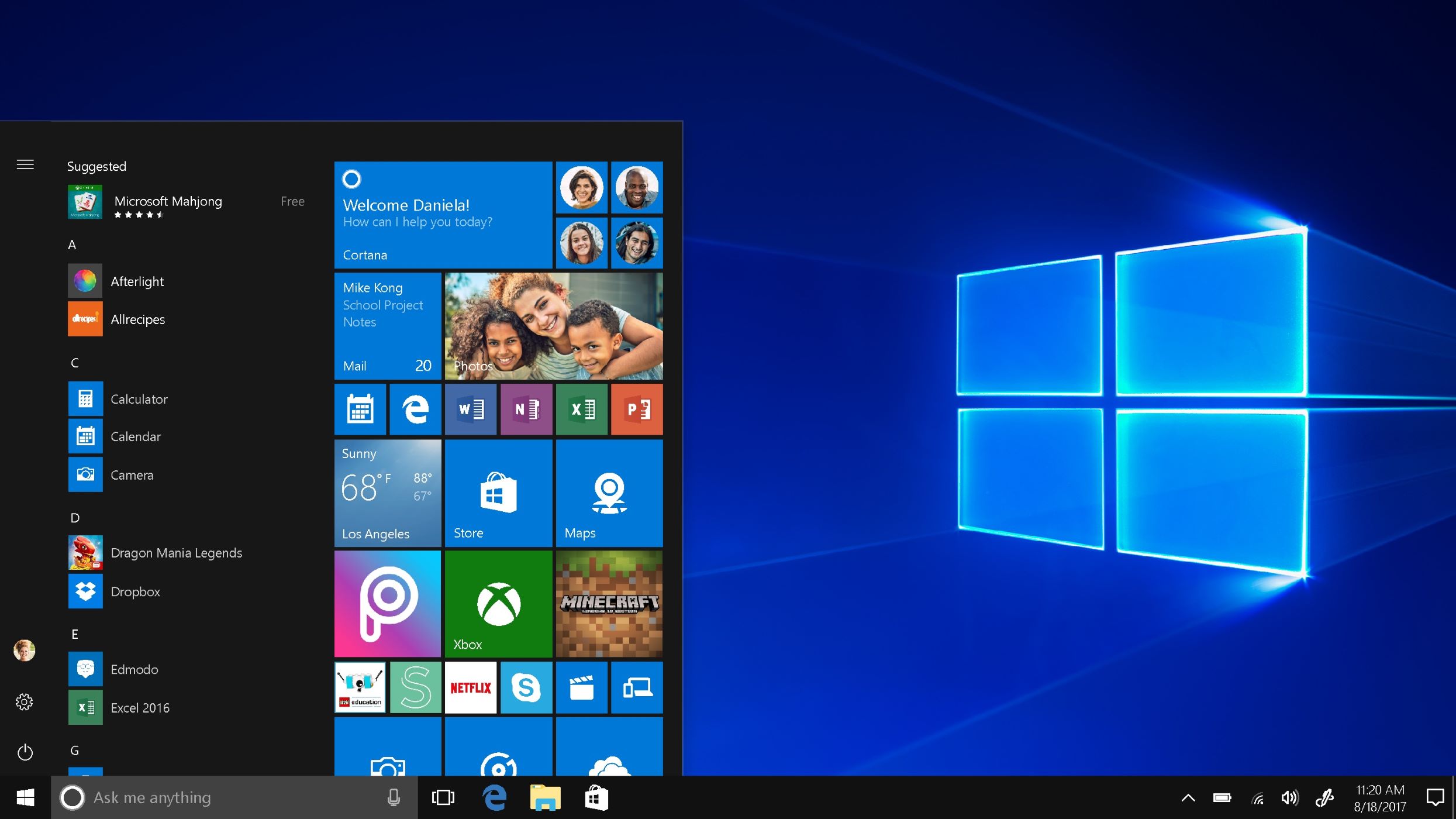
Maximize Battery Life: A Guide to Windows 10 Power Management.
Hey there, tech enthusiasts! Ever find yourself staring desperately at that blinking low battery icon on your laptop, right in the middle of an important task? We've all been there. It's like the digital equivalent of a horror movie jumpscare. One minute you're cruising along, the next, you're scrambling for an outlet like it's the last piece of pizza at a party.
In today's always-on, always-connected world, power management is no longer a nice-to-have; it's a necessity. Think of your laptop or tablet like a marathon runner. You wouldn't expect them to sprint the entire 26.2 miles, would you? They need to pace themselves, conserve energy, and strategically deploy their resources to cross that finish line. The same goes for your devices.
Windows 10, thankfully, comes packed with a bunch of power management features designed to help you squeeze every last drop of juice out of your battery. But let's be honest, navigating these settings can feel like trying to decipher ancient hieroglyphics. You're bombarded with terms like "sleep states," "hybrid shutdown," and "power throttling," and before you know it, you're reaching for that charger again, completely defeated.
The problem is, most of us just accept the default power settings without giving them a second thought. We assume that Microsoft knows best, and that our devices are automatically optimized for efficiency. But that's like letting a robot choose your wardrobe – it might be functional, but it definitely won't be stylish or tailored to your individual needs. In reality, those default settings are often a compromise between performance and battery life, and they might not be the best fit for your specific usage patterns.
Maybe you're a student who needs their laptop to last through a full day of classes. Or perhaps you're a freelancer who spends hours working remotely in coffee shops. Or maybe you're just tired of your tablet dying halfway through your favorite Netflix binge. Whatever your situation, mastering Windows 10's power management features can make a huge difference in your daily life. It's like unlocking a secret superpower that lets you stay productive, entertained, and connected for longer, without being tethered to a wall.
But what if you could take control of your device's power consumption and customize it to perfectly match your needs? What if you could extend your battery life by hours, simply by tweaking a few settings? What if you could finally ditch that anxiety-inducing low battery warning and enjoy the freedom of truly mobile computing?
In this article, we're going to demystify Windows 10's power management features and show you how to use them to your advantage. We'll break down the jargon, explain the concepts in plain English, and provide step-by-step instructions on how to optimize your device for maximum battery life. We'll cover everything from choosing the right power plan to tweaking advanced settings and even diagnosing power-hungry apps.
So, are you ready to unlock the full potential of your Windows 10 device and say goodbye to battery anxiety forever? Stick around, because we're about to dive deep into the world of power management and show you how to become a true battery ninja!
Unlocking the Secrets of Windows 10 Power Management
Alright, friends, let's get down to business. We're going to explore the nitty-gritty of Windows 10 power management, arming you with the knowledge and skills to conquer that dreaded low battery warning once and for all.
Understanding Power Plans: Your First Line of Defense
Think of power plans as pre-set configurations that dictate how your computer balances performance and energy consumption. Windows 10 comes with a few default options, but you can also create your own custom plans to perfectly match your needs.
- Balanced: This is the default plan and aims to strike a balance between performance and energy savings. It's a good option for everyday use, but it might not be the most efficient if you're primarily concerned about battery life. Think of it as the "jack-of-all-trades" power plan.
- Power Saver: As the name suggests, this plan prioritizes energy conservation above all else. It reduces screen brightness, limits processor performance, and aggressively puts your device to sleep when it's not in use. This is your go-to plan when you're desperately trying to squeeze every last minute out of your battery. Imagine it as your emergency "battery extender" mode.
- High Performance: This plan unlocks the full potential of your hardware, sacrificing energy efficiency for maximum speed and responsiveness. It's ideal for demanding tasks like gaming, video editing, or running complex simulations. But be warned, it will drain your battery much faster. Think of it as the "nitro boost" power plan, use with caution!
How to Access and Change Power Plans:
- Click the Start button and type "Power Options."
- Select "Power Options" from the search results.
- You'll see a list of available power plans. Simply select the one you want to use.
- To customize a power plan, click "Change plan settings" next to the plan name.
Creating Your Own Custom Power Plan:
- In the Power Options window, click "Create a power plan" in the left-hand pane.
- Choose an existing plan as a starting point (e.g., Balanced or Power Saver).
- Give your new plan a name and description.
- Customize the settings to your liking.
Diving Deeper: Advanced Power Settings
Now, let's get into the real power user territory. The Advanced Power Settings menu allows you to fine-tune almost every aspect of your device's power consumption.
Accessing Advanced Power Settings:
- From the Power Options window, click "Change plan settings" next to the plan you want to customize.
- Click "Change advanced power settings."
Here are some key settings you'll want to explore:
- Hard disk: Adjust the time it takes for your hard drive to spin down when idle. A shorter time will save power, but it might also slightly decrease performance. Think of it as giving your hard drive a "nap" when it's not needed.
- Wireless Adapter Settings: Configure the power saving mode for your Wi-Fi adapter. "Maximum Power Saving" will extend battery life, but it might also reduce your Wi-Fi speed. This is especially useful when you're not actively using the internet.
- Sleep: Customize the sleep and hibernation settings. Sleep mode puts your computer into a low-power state, allowing you to quickly resume your work. Hibernation saves your current session to your hard drive and completely shuts down your computer, consuming virtually no power. Experiment with different settings to find the balance that works best for you.
- USB settings: Enable "USB selective suspend setting" to allow Windows to turn off power to USB devices that are not in use. This can save a surprising amount of battery life, especially if you have multiple USB devices connected.
- Display: Adjust the screen brightness and the time it takes for your display to turn off when idle. A dimmer screen and a shorter timeout will significantly extend your battery life. Consider enabling adaptive brightness, which automatically adjusts the screen brightness based on ambient lighting conditions.
- Processor power management: Configure the minimum and maximum processor state. Lowering the maximum processor state will limit performance but save power. This is a great option when you're doing less demanding tasks like browsing the web or writing documents.
- Battery: Customize the low battery notification and action settings. You can set the battery level at which Windows will display a warning and automatically put your computer to sleep or hibernate.
Taming Power-Hungry Apps: The Battery Usage Tool
Sometimes, the biggest battery drainers are not the hardware settings, but the apps you're running. Windows 10 includes a built-in Battery Usage tool that allows you to identify which apps are consuming the most power.
Accessing the Battery Usage Tool:
- Click the Start button and type "Battery Saver settings."
- Select "Battery Saver settings" from the search results.
- Scroll down to the "Battery usage per app" section.
This tool will show you a list of apps and the percentage of battery power they've consumed. If you notice an app that's using a disproportionate amount of power, you can take action to limit its impact.
- Close Unnecessary Apps: The simplest solution is often the most effective. If you're not actively using an app, close it to prevent it from running in the background and consuming power.
- Adjust App Settings: Some apps have their own power saving settings. For example, you might be able to disable background syncing or reduce the frequency of updates.
- Uninstall Power-Hungry Apps: If an app is consistently draining your battery and you don't use it frequently, consider uninstalling it altogether.
Other Battery-Saving Tips and Tricks
Beyond the core power management features, here are a few other things you can do to extend your Windows 10 battery life:
- Disable Background Apps: Many apps run in the background, even when you're not actively using them. These apps can consume significant power. To disable background apps, go to Settings > Privacy > Background apps.
- Turn Off Location Services: Location services can also drain battery life. To disable location services, go to Settings > Privacy > Location.
- Reduce Screen Resolution: A higher screen resolution requires more processing power and consumes more battery. If you're not doing anything that requires high resolution, consider lowering it to save power.
- Use Airplane Mode: When you don't need to be connected to the internet, enable Airplane mode to disable Wi-Fi and Bluetooth. This can significantly extend your battery life.
- Keep Your System Updated: Microsoft regularly releases updates that include performance improvements and bug fixes, some of which can improve battery life. Make sure you're running the latest version of Windows 10.
- Monitor Your Battery Health: Over time, your battery's capacity will gradually decrease. You can use a battery health tool to monitor your battery's condition and determine when it needs to be replaced.
Frequently Asked Questions (FAQs)
Let's address some common questions about Windows 10 power management:
- Q: Will tweaking power settings affect my computer's performance?
- A: Yes, some power settings can impact performance. For example, lowering the maximum processor state will limit performance but save power. It's a trade-off, so you need to find the balance that works best for you.
- Q: How can I tell if a specific app is draining my battery?
- A: Use the Battery Usage tool (Settings > System > Battery > Battery usage per app) to see which apps are consuming the most power.
- Q: Is it better to shut down my computer or put it to sleep?
- A: Sleep mode is ideal for short breaks, as it allows you to quickly resume your work. Hibernation is better for longer periods of inactivity, as it consumes virtually no power. Shutting down your computer completely is also an option, but it takes longer to restart.
- Q: Does it hurt my battery to leave my laptop plugged in all the time?
- A: Modern laptops use lithium-ion batteries, which don't suffer from the "memory effect" that plagued older battery technologies. However, keeping your laptop plugged in all the time can generate heat, which can degrade the battery over time. It's generally best to let your battery discharge occasionally to keep it in good condition.
So there you have it, friends! A comprehensive guide to mastering Windows 10 power management. By understanding these features and implementing these tips, you can take control of your device's power consumption and enjoy longer battery life, increased productivity, and reduced battery anxiety.
Now go forth and conquer that low battery warning! Experiment with different settings, monitor your battery usage, and find the power management strategy that works best for you. And don't forget to share your tips and tricks with your fellow tech enthusiasts!
Alright, friends, that brings us to the finish line. We've covered a lot of ground, from understanding power plans to tweaking advanced settings and taming power-hungry apps. The key takeaway? You're in control of your Windows 10 device's power consumption. Don't let the default settings dictate your battery life. Take the time to customize your power plan, explore the advanced settings, and identify those sneaky apps that are draining your battery.
Now that you're armed with this knowledge, it's time to take action. Go to your Windows 10 settings and start experimenting with the power management features we've discussed. Try creating a custom power plan tailored to your specific needs. Monitor your battery usage to identify any problem apps. And most importantly, don't be afraid to tweak and adjust until you find the perfect balance between performance and battery life.
Ready to ditch that charger and embrace the freedom of truly mobile computing? Go ahead and dive into those power settings, and let us know in the comments how much extra battery life you've managed to squeeze out! What settings worked best for you? Are there any other battery-saving tips that you'd like to share?
Remember, mastering Windows 10 power management is not just about extending your battery life; it's about taking control of your digital life and maximizing your productivity. So go out there, optimize your device, and conquer your day with confidence!

Post a Comment for "Windows 10: How to Use Power Management Features"
Post a Comment