How to Use the Windows 11 Virtualization-Based Security (VBS)
How to Supercharge Your Windows 11 Security with Virtualization-Based Security (VBS)
Hey there, tech enthusiasts! Ever feel like your computer is a fortress, but the drawbridge is perpetually down? We all want our digital lives to be secure, especially with sneaky malware and cyber threats lurking around every corner. Windows 11 offers a powerful feature called Virtualization-Based Security (VBS) designed to seriously beef up your system's defenses. Think of it as hiring a team of digital bodyguards for your PC. VBS creates an isolated environment where sensitive processes run, making it much harder for malware to mess with your core system. But how do you actuallyusethis superpower? Don't worry, it's not as complicated as it sounds. Maybe you've heard whispers about VBS but aren't sure if it's enabled on your machine or how to even check. Or perhaps you're wondering if it's worth the potential performance trade-off. Is this the security upgrade that will make a real difference, or just another setting you'll forget about? Get ready to find out! We're diving deep into VBS, demystifying the jargon, and showing you exactly how to leverage this feature to fortify your Windows 11 PC. Buckle up, friends – let's get secure!
What is Virtualization-Based Security (VBS) Anyway?
Alright, let's break down VBS in plain English. Imagine your computer's operating system as a city. Normally, everything runs together in this city – programs, processes, the whole shebang. Malware can sneak in and wreak havoc because there aren't many barriers. VBS, however, creates a special, walled-off district within that city, using hardware virtualization. This isolated district is where critical system processes and sensitive data reside. Because it's separated from the rest of the OS, even if malware infiltrates the main "city," it can't easily get to the VBS-protected area. It's like having a VIP section with its own security detail. This separation is achieved using the hypervisor, a low-level piece of software that manages virtual machines. In the context of VBS, the hypervisor creates a secure environment where the Kernel Mode Code Integrity (KMCI) service, among other things, can operate. KMCI verifies all kernel-mode drivers and binaries before they are allowed to run, ensuring that only trusted code gets access to the core of your system.
Why is this important? Well, traditional antivirus software relies on detecting malware based on known signatures or suspicious behavior. But what about new, previously unseen threats (often called zero-day exploits)? These are the real danger. VBS adds a layer of protection that worksindependentlyof traditional antivirus. Even if a brand-new piece of malware manages to bypass your antivirus, it will still face a significant challenge trying to break into the VBS-protected environment. Think of it as having a second line of defense – a last resort that can prevent even the most sophisticated attacks from compromising your system. The key here is isolation. By running critical processes in a virtualized environment, VBS minimizes the attack surface and limits the damage that malware can inflict. It's a proactive approach to security, rather than a reactive one. Pretty neat, right?
Checking if VBS is Enabled (and Enabling it if it Isn't!)
Okay, so you're intrigued by VBS and want to know if it's already running on your Windows 11 machine. Here’s how to check and, if needed, enable it.
System Information
This is the easiest way to get a quick overview.
- Type "System Information" in the Windows search bar and open the app.
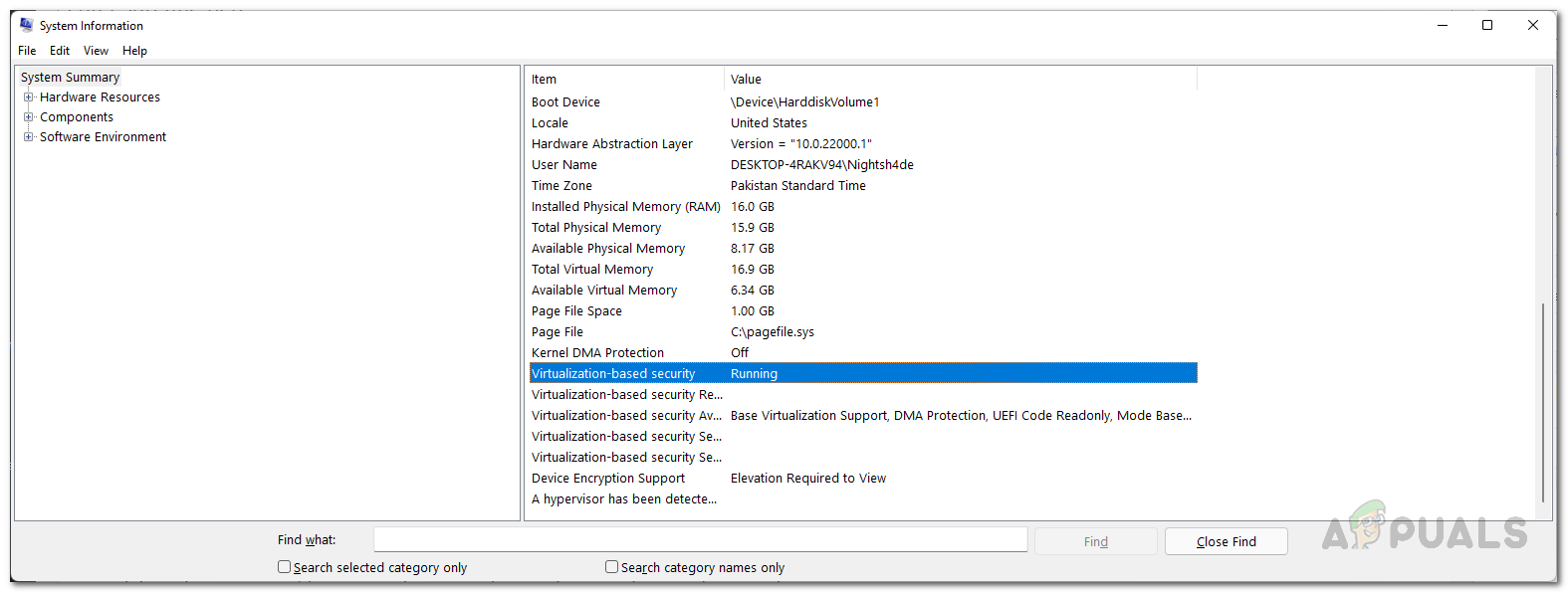
- Look for "Virtualization-based security" in the list. If it says "Running," you're all set! If it says "Not enabled," or something similar, keep reading.
Task Manager
Another simple method for a quick check.
- Press Ctrl+Shift+Esc to open Task Manager.
- Go to the "Performance" tab.
- Look for "Virtualization" and confirm it's enabled. This is a prerequisite for VBS. If it's disabled, you'll need to enable it in your BIOS/UEFI settings (more on that later).
- If virtualization is enabled, scroll down and look for "Virtualization-based security." It will show whether it's enabled or not.
MSInfo32
Provides more detailed information.
- Press Windows key + R, type "msinfo32," and press Enter.
- In System Information, look for "Virtualization-based security" in the right pane.
- Check the "Status" to see if it is enabled.
Enabling Virtualization in BIOS/UEFI
If Task Manager shows that virtualization is disabled, you'll need to enable it in your computer's BIOS/UEFI settings. This is a bit more technical, but don't worry, we'll walk you through it.
- Restart your computer.
- As your computer starts up, look for a message on the screen that tells you which key to press to enter the BIOS/UEFI setup. This key is usually Delete, F2, F12, Esc, or something similar. It varies depending on your motherboard manufacturer. If you miss the message, try restarting again and paying close attention.
- Once you're in the BIOS/UEFI setup, look for settings related to "Virtualization Technology" or "VT-x" (for Intel processors) or "AMD-V" (for AMD processors). The exact location of these settings will vary depending on your BIOS/UEFI interface, but they are usually found under the "Advanced" or "CPU Configuration" sections.
- Enable the virtualization setting.
- Save your changes and exit the BIOS/UEFI setup. Your computer will restart.
Enabling VBS in Windows 11
Even if virtualization is enabled, VBS might still be disabled. Here's how to enable it in Windows 11:
- Type "Turn Windows features on or off" in the Windows search bar and open the app.
- Make sure that "Virtual Machine Platform" and "Windows Hypervisor Platform" are both checked.
- Click "OK" and restart your computer.
After restarting, check System Information again to see if VBS is now enabled. If it's still not enabled, you might need to enable Secure Boot.
Enabling Secure Boot
Secure Boot is a security feature that helps prevent malicious software from loading when your computer starts up. It's often required for VBS to function properly.
- Check if Secure Boot is enabled: Open System Information (msinfo32) and look for "Secure Boot State." If it says "Off," you'll need to enable it.
- Enabling Secure Boot: This process also takes place in the BIOS/UEFI settings. Restart your computer and enter the BIOS/UEFI setup as described earlier. Look for settings related to "Secure Boot." The exact location will vary, but it's often found under the "Boot" or "Security" sections.
- Enable Secure Boot. You might need to set the "Boot Mode" to "UEFI" if it's currently set to Legacy.
- Save your changes and exit the BIOS/UEFI setup. Your computer will restart.
Important Note: Enabling Secure Boot can sometimes cause issues if you're dual-booting with another operating system or using older hardware. Make sure you understand the potential risks before enabling it. After enabling Secure Boot, check System Information again to confirm that it's enabled and that VBS is also running.
The Performance Question: Will VBS Slow Down My PC?
This is the million-dollar question, isn't it? While VBS provides enhanced security, it can also impact performance, especially on older or less powerful hardware. The degree of performance impact depends on several factors, including your CPU, RAM, and the type of applications you're running.
Here’s the deal: VBS adds overhead because it's essentially running a mini-virtual machine in the background. This requires extra processing power and memory. Some users report little to no noticeable performance impact, while others experience a more significant slowdown, especially in CPU-intensive tasks like gaming or video editing.
So, what can you do?
- Assess Your Hardware: If you have a modern CPU with plenty of cores and RAM, you're less likely to experience a significant performance hit. Older or lower-end systems might struggle more.
- Test and Monitor: The best way to know for sure is to enable VBS and monitor your system's performance. Use Task Manager to keep an eye on CPU and memory usage while running your usual applications.
- Consider Selective Disabling: In some cases, you might be able to selectively disable certain VBS features to reduce the performance impact. However, this will also reduce the level of security.
- Keep Drivers Updated: Outdated drivers can sometimes cause performance issues with VBS. Make sure you have the latest drivers for your graphics card, network adapter, and other hardware components.
Ultimately, the decision of whether or not to enable VBS is a trade-off between security and performance. You need to weigh the risks of potential malware attacks against the potential performance impact on your system. For most users, the added security of VBS is worth the small performance hit, especially given the increasing sophistication of cyber threats. But if you're a hardcore gamer or video editor who needs every ounce of performance, you might want to carefully consider the trade-offs.
Real-World Examples and Use Cases
Let's look at some real-world scenarios where VBS can make a difference:
- Protecting Against Kernel-Level Malware: Traditional antivirus software often struggles to detect malware that operates at the kernel level (the core of the operating system). VBS can prevent this type of malware from running in the first place by isolating the kernel and verifying the integrity of kernel-mode drivers.
- Securing Credentials: VBS can be used to protect sensitive credentials, such as passwords and encryption keys, by storing them in a virtualized environment that is isolated from the rest of the system. This makes it much harder for attackers to steal these credentials.
- Mitigating Firmware Attacks: Modern malware is increasingly targeting firmware (the software that controls hardware devices). VBS can help mitigate these attacks by verifying the integrity of firmware images before they are loaded.
- Enhancing Application Security: VBS can be used to create a secure environment for running applications, preventing them from being tampered with or compromised by malware. This is particularly useful for running sensitive applications, such as banking software or cryptocurrency wallets.
These are just a few examples of how VBS can enhance your security. By creating an isolated environment for sensitive processes and data, VBS significantly reduces the attack surface and makes it much harder for malware to compromise your system.
Troubleshooting Common VBS Issues
Sometimes, things don't go as planned. Here are some common issues you might encounter with VBS and how to troubleshoot them:
- VBS Not Enabling Despite Meeting Requirements: Double-check that virtualization is enabled in your BIOS/UEFI settings and that both "Virtual Machine Platform" and "Windows Hypervisor Platform" are enabled in Windows Features. Also, ensure that Secure Boot is enabled and that your system is running in UEFI mode.
- Performance Issues: If you experience significant performance slowdowns after enabling VBS, try closing unnecessary applications and processes. You can also try selectively disabling certain VBS features (although this will reduce security). Make sure your drivers are up to date.
- Compatibility Issues: Some older applications or games might not be compatible with VBS. If you experience crashes or other issues after enabling VBS, try disabling it temporarily to see if that resolves the problem.
- Error Messages: Pay close attention to any error messages you receive. These messages can often provide clues about the underlying cause of the problem. Search online for the error message to find potential solutions.
If you're still having trouble, consult the Microsoft support documentation or seek help from online forums or communities. There are plenty of experienced users who can offer guidance and assistance.
Expert Perspectives and Future Trends
What do the experts say about VBS? Security professionals generally agree that VBS is a valuable security feature that can significantly enhance the protection of Windows 11 systems. However, they also caution that it's not a silver bullet and should be used in conjunction with other security measures, such as antivirus software and firewalls.
Looking ahead, we can expect VBS to become even more important as cyber threats continue to evolve. Microsoft is likely to continue investing in VBS and adding new features to further enhance its security capabilities. We may also see wider adoption of VBS-like technologies in other operating systems and platforms.
One interesting trend is the increasing use of hardware-based security features, such as VBS, to protect against firmware attacks. As malware becomes more sophisticated, attackers are increasingly targeting the firmware layer, which is often overlooked by traditional security measures. Hardware-based security features offer a more robust and effective way to defend against these types of attacks.
Another trend is the growing importance of isolation and compartmentalization in security. VBS is a prime example of this trend, as it creates an isolated environment for sensitive processes and data. This approach helps to limit the damage that malware can inflict, even if it manages to bypass other security measures.
Step-by-Step Guide: How to Use Windows 11 Virtualization-Based Security (VBS)
Okay, friends, let's get down to brass tacks. Here’s your actionable, step-by-step guide to using Windows 11 VBS:
- Confirm Compatibility: First, ensure your system meets the minimum requirements. You'll need a relatively modern processor (Intel 8th generation or newer, or AMD Ryzen 2000 series or newer), at least 8 GB of RAM (16 GB recommended), and a UEFI-enabled motherboard.
- Enable Virtualization: Access your BIOS/UEFI settings (usually by pressing Delete, F2, or a similar key during startup). Find the virtualization settings (VT-x for Intel, AMD-V for AMD) and enable them. Save your changes and restart.
- Enable Windows Features: In Windows, search for "Turn Windows features on or off." Check the boxes next to "Virtual Machine Platform" and "Windows Hypervisor Platform." Click "OK" and restart your computer again.
- Enable Secure Boot: This is crucial. Open System Information (type "msinfo32" in the search bar) and check the "Secure Boot State." If it's "Off," you need to enable it in your BIOS/UEFI settings. This process varies depending on your motherboard, so consult your motherboard manual or search online for instructions specific to your model. Make sure your boot mode is set to UEFI.
- Verify VBS is Running: After restarting, go back to System Information and check "Virtualization-based security." It should now say Running.If it doesn't, double-check all the previous steps.
- Monitor Performance: Keep an eye on your system's performance, especially when running demanding applications or games. If you notice significant slowdowns, you might need to adjust your settings or consider upgrading your hardware.
- Stay Updated: Make sure you're running the latest version of Windows 11 and that your drivers are up to date. This will ensure that you have the latest security patches and performance improvements.
- Regular Scans: Even with VBS enabled, continue to run regular scans with your antivirus software. VBS is an additional layer of security, not a replacement for traditional antivirus.
FAQ: Your Burning VBS Questions Answered
Still got questions? We've got answers!
- Q: Does VBS replace my antivirus software?
A: No, VBS is an additional layer of security, not a replacement for traditional antivirus. You should continue to run regular scans with your antivirus software to protect against known threats.
- Q: Will VBS drain my laptop battery faster?
A: VBS can potentially increase battery drain, especially on older or less efficient hardware. However, the impact is usually minimal. You can monitor your battery usage to see if VBS is having a noticeable effect.
- Q: Can I disable VBS if I'm having performance issues?
A: Yes, you can disable VBS if you're experiencing significant performance problems. However, this will reduce the security of your system. To disable VBS, you'll need to disable the "Virtual Machine Platform" and "Windows Hypervisor Platform" features in Windows Features, and potentially disable Secure Boot in your BIOS/UEFI settings.
- Q: Is VBS available on all versions of Windows 11?
A: VBS is available on most versions of Windows 11, but it may not be enabled by default on all systems. You'll need to check your system information to see if it's running and enable it if necessary.
Conclusion: Secure Your Windows 11 Fortress with VBS!
Alright, friends, we've reached the end of our deep dive into Windows 11 Virtualization-Based Security. We've explored what VBS is, how it works, how to enable it, and how it can protect your system from malware and other threats. We've also addressed the performance question and provided troubleshooting tips for common issues.
In a nutshell, VBS is a powerful security feature that creates an isolated environment for sensitive processes and data, making it much harder for malware to compromise your system. While it's not a silver bullet, it's a valuable addition to your overall security posture.
Now that you're armed with this knowledge, it's time to take action! Take a few minutes to check if VBS is enabled on your Windows 11 machine. If it's not, follow the steps we've outlined to enable it. It's a small investment of time that can pay off big in terms of security.
Don't wait until you're the victim of a cyberattack to start thinking about security. Be proactive, take control of your digital fortress, and supercharge your Windows 11 security with VBS! Are you ready to make your computer a safer place?
)
Post a Comment for "How to Use the Windows 11 Virtualization-Based Security (VBS)"
Post a Comment